

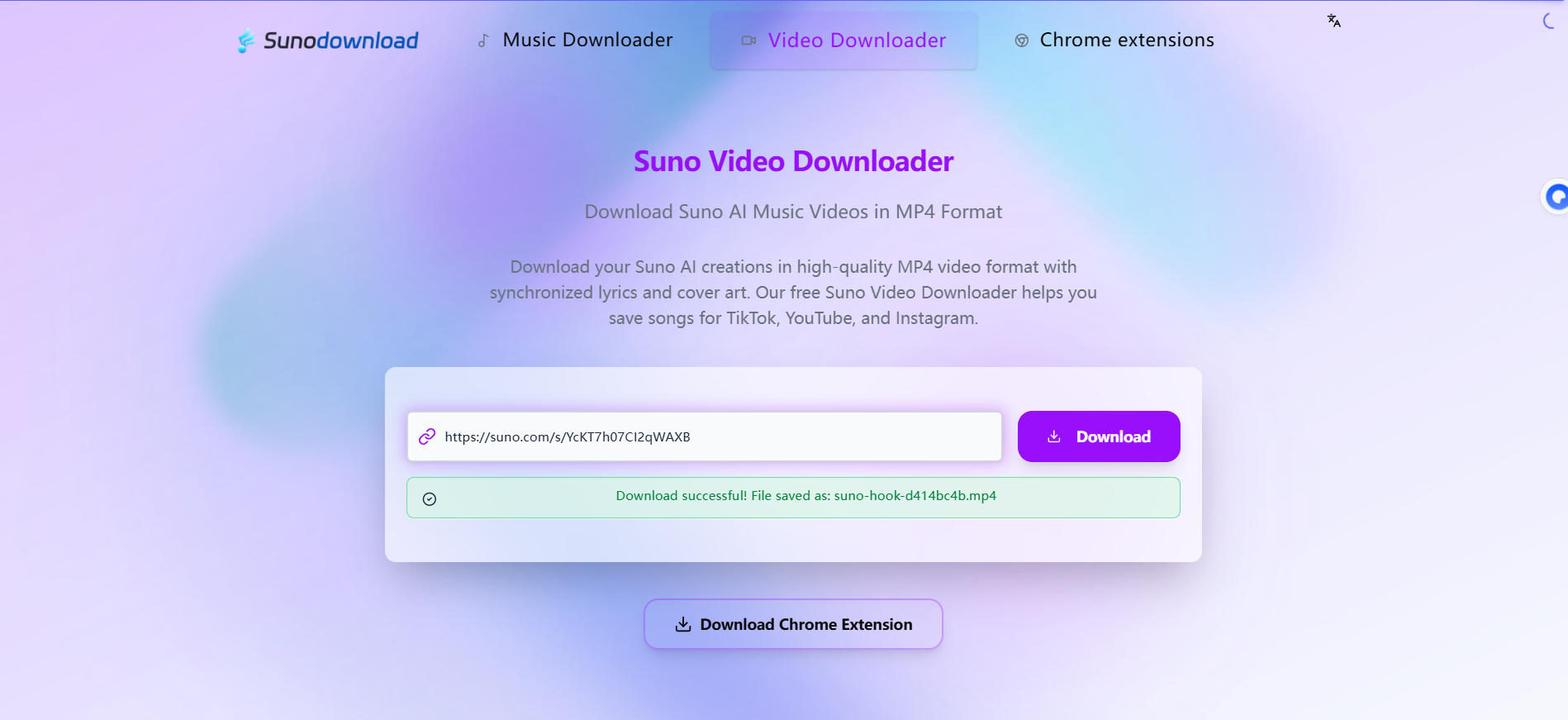
💡 Ready to download your Suno music creations? Visit our homepage to start downloading now →
How to Download Suno Music: Complete Guide (MP3/WAV Formats)
Suno AI has revolutionized music creation, enabling anyone to generate professional-quality music through AI. However, many users encounter difficulties when saving their creations. This guide provides detailed instructions on how to download Suno music, including MP3 and WAV formats, and how to ensure the best audio quality.
Why Downloading Suno Music is Important
The Suno AI platform allows users to create stunning original music, but these works are saved in the cloud by default. Downloading your creations offers multiple benefits:
- Permanent Preservation: Ensure your music won't be lost due to account issues or platform changes
- Offline Access: Play your music anytime, anywhere without internet connection
- Easy Sharing: Share your work with friends, collaborators, or on social media
- Post-Production: Import music into other software for mixing, editing, or adding elements
- Format Flexibility: Choose the appropriate audio format for different purposes
Suno Music Format Breakdown: MP3 vs WAV
Before downloading Suno music, understanding the characteristics of different audio formats is crucial:
MP3 Format
MP3 is the most common audio compression format with the following features:
- Small File Size: Compression ratio typically 10:1 to 12:1
- Wide Compatibility: Supported by almost all devices and players
- Easy Sharing: Convenient for transmission via email, cloud storage, or social media
- Variable Bitrate: Supports different quality levels from 128kbps to 320kbps
Best Use Cases: Daily listening, mobile device playback, online sharing
WAV Format
WAV is a lossless audio format offering the following advantages:
- Original Quality: Maintains complete audio data without compression loss
- Professional Standard: Format of choice for recording studios and music production
- Post-Production Friendly: Ideal for mixing, mastering, and other post-production work
- Larger Files: Same duration audio files are 10+ times larger than MP3
Best Use Cases: Professional production, archival collection, high-quality playback
Method 1: Using a Professional Suno Music Downloader
The simplest and most reliable method is using a dedicated download tool.
Key Features
- ✅ Supports MP3 (128-320kbps) and WAV format downloads
- ✅ Automatic detection of highest available quality
- ✅ Preserves complete metadata (title, artist, album information)
- ✅ Free to use, no registration required
- ✅ Compatible with all Suno AI versions (v3.5 and v4.0)
Step-by-Step Guide
- Copy Song Link: Find the song you want to download on the Suno platform and copy its URL
- Visit Downloader: Open the download tool homepage
- Paste Link: Paste the copied link into the input field
- Select Format: Choose between MP3 and WAV formats
- Select Quality: For MP3, 320kbps is recommended for best quality
- Click Download: Wait for processing to complete, and the file will be automatically saved to your device
🎵 Want to experience hassle-free Suno music downloads? Head to our homepage and download your favorite tracks →
Why Choose a Professional Downloader?
Using a dedicated download tool offers significant advantages over other methods:
| Feature | Professional Downloader | Browser Recording | Screen Recording |
|---|---|---|---|
| Audio Quality | Original Quality | Compressed Loss | Severe Loss |
| Speed | Seconds | Real-time Recording | Real-time Recording |
| Metadata | Fully Preserved | Lost | Lost |
| Difficulty | Very Simple | Moderate | Complex |
Method 2: Direct Download from Suno Platform
The Suno platform itself offers download functionality, though with some limitations, it's sufficient for basic needs.
Platform Download Limitations
- Format Restrictions: Usually only provides MP3 format
- Quality Limitations: May not offer the highest quality
- Quantity Limits: Free accounts may have download restrictions
- Membership Requirements: Some features may require paid subscription
Platform Download Steps
- Log into your Suno AI account
- Go to "My Music" or "Library" page
- Find the song you want to download
- Click the download icon next to the song (usually a downward arrow)
- Select download options (if available)
- File will be saved to your default download folder
Platform Download Best Practices
For optimal results:
- Preview songs on high-resolution displays to ensure quality
- Verify you're downloading the full version (not preview)
- Regularly backup your downloaded files
- Consider upgrading to premium membership for better download options
Method 3: Browser Extension Download
Chrome browser extensions provide another convenient download method, especially suitable for frequent downloaders.
Recommended Extension Features
- One-click download button directly on Suno pages
- Automatic detection of music content on pages
- Download history tracking
- Custom download paths and filenames
Extension Installation Steps
- Visit Chrome Web Store
- Search for "Suno Downloader"
- Choose extensions with high ratings and frequent updates
- Click "Add to Chrome" button
- Confirm installation permissions
- Extension icon will appear in browser toolbar
Using Extension for Download
- Open the song page you want to download on Suno website
- Click the extension icon or download button on the page
- Select format and save location
- Confirm download
💡 Tip: Browser extensions are especially suitable for users who need to download songs frequently, saving significant time.
Audio Quality Selection Guide
Choosing the right quality is crucial for the best listening experience.
MP3 Bitrate Comparison
| Bitrate | File Size | Quality Description | Best Use Cases |
|---|---|---|---|
| 128kbps | Smallest | Basic quality, noticeable compression | Voice content, preview |
| 192kbps | Small | Moderate quality, suitable for casual listening | Background music, mobile devices |
| 256kbps | Medium | Good quality, satisfactory for most users | Daily listening, sharing |
| 320kbps | Large | Excellent quality, near CD quality | Music collection, high-quality playback |
When to Choose WAV Format
WAV format is the best choice in these situations:
- Professional Production: Need mixing, mastering, or other post-production work
- Archival Purposes: Long-term preservation of original creations
- High-Quality Playback: Playing on high-fidelity audio systems
- Format Conversion: Converting to other formats without quality loss
Audio Quality Verification Tips
To verify downloaded audio quality:
- Check File Info: Right-click file, select "Properties" to view bitrate
- Use Professional Software: Such as Audacity, FFmpeg to analyze audio spectrum
- Listening Test: Listen on high-quality headphones or speakers
- Comparison Test: A/B compare different versions of the same song
Format Conversion Tips
Sometimes you may need to convert downloaded audio to other formats.
Recommended Conversion Tools
- Online Converters: CloudConvert, Zamzar, Online-Convert
- Desktop Software: FFmpeg, HandBrake, Format Factory
- Professional Tools: Adobe Audition, Logic Pro, Ableton Live
Conversion Best Practices
- Maintain Quality: When converting from high-quality format (WAV) to low-quality format (MP3), choose the highest bitrate
- Avoid Repeated Conversion: Each conversion loses quality, always convert from source files
- Preserve Original Files: Backup original files before conversion
FFmpeg Conversion Command Examples
# WAV to MP3 (320kbps)
ffmpeg -i input.wav -b:a 320k output.mp3

# MP3 to WAV
ffmpeg -i input.mp3 output.wav

# Adjust volume
ffmpeg -i input.mp3 -filter:a "volume=0.5" output.mp3
Where Is the Library in Suno? (Finding Your Songs)
Once you have generated a few tracks, the natural question is where they all go. Suno keeps everything you create in your Library — not on the create page where the song first appeared.
- Desktop: sign in at suno.com and look at the left-hand navigation. Library sits alongside Create and Search, with your newest tracks first.
- Mobile: open the menu and tap Library. The mobile web version and the iOS/Android apps share the same account, so the list is identical.
- Inside the Library: switch between Songs, Playlists and Workspaces. Workspaces are shared spaces — a song made inside one belongs to that workspace, not to your personal list.
If your songs seem to have vanished, check these three things before anything else:
- You are signed in the same way. A "Sign in with Google" account and an email/password account are two different accounts, even with the same address on screen.
- You are looking at the right Workspace. Your personal Library and a shared Workspace library are separate views.
- A filter is hiding them. Public/private filters and the search box both narrow the list, and the filter persists between visits.
Found the song? Open it, copy the URL, and paste it into the downloader — that link is all the tool needs.
How to Save Suno Cover Art (Song Images)
Every Suno song ships with a generated cover image, and plenty of people want that image on its own — as a playlist thumbnail, a video still, or artwork for a release.
- From the song page: open the track, then right-click the cover (long-press on mobile) and choose "Save image as". Desktop browsers give you the largest version Suno serves.
- From a video download: if you save the MP4, the cover art is already baked into the frame, so you can grab a clean still from it.
- Resolution: the cover shown on the web is compressed for speed. It is fine for thumbnails and social posts, but there is no official high-resolution export — upscalers can sharpen it, they cannot invent detail that was never there.
One caution: the artwork is generated for your song, but if you plan to publish the track commercially, check what your current Suno plan allows before reusing the image.
How to Use Suno: A 5-Minute Overview
If you have never touched Suno before, the whole product fits into four steps. If you arrived here after typing Sonu, Sono AI or Suuno, it is the same platform — the Suno name guide covers the spelling, the pronunciation and the official site.
- Sign up at suno.com. The free tier gives you a daily credit allowance, which is enough to try a few generations.
- Describe a song. Type a prompt in plain language — "lo-fi jazz with brushed drums and a rainy-night mood" — or switch on Custom Mode to set lyrics, style and title separately.
- Generate. Each request returns two variations. Play both, then extend, remix or regenerate the one that works.
- Save it. Download the track as MP3 or WAV, or take the MP4 video that includes the cover art.
Two settings confuse almost every beginner, and both are covered in depth in our Suno prompt guide: Style (what the music should sound like) and Audio Influence (how closely the model should follow a reference track you upload). Everything else — personas, stems, lyric edits — is a refinement built on top of those two.
Frequently Asked Questions
Q1: Is downloading Suno music legal?
A: Downloading your own Suno creations is completely legal because you own the copyright to these works. For others' works, ensure proper permission or only download content explicitly allowed for sharing.
Q2: Why is my download speed slow?
A: Download speed can be affected by various factors: network connection, server load, file size, etc. Try downloading during off-peak hours or use professional download tools for better speeds.
Q3: Which is better, MP3 or WAV?
A: It depends on use case. MP3 is better for daily use and sharing, WAV is better for professional production and long-term archiving. If quality is the primary concern, choose WAV; if convenience matters more, choose high-bitrate MP3.
Q4: Can I download other users' Suno music?
A: You can only download your own content or publicly available content that explicitly allows downloading. Unauthorized downloading of others' work may infringe copyright.
Q5: Can downloaded music be used for commercial purposes?
A: According to Suno's terms of service, music generated by free accounts is typically not for commercial use. Paid subscriptions may offer commercial rights - check the latest service terms to confirm.
Q6: How to ensure downloaded music is highest quality?
A: Use professional download tools which automatically detect and download the highest quality version available. Avoid recording methods as they lose quality.
Q7: Where do I find my saved songs in Suno?
A: They live in your Library, reachable from the left-hand navigation on desktop and from the menu on mobile. If you cannot see a song, confirm you are signed in with the same method (Google vs email), check that you are not inside a shared Workspace, and clear any active filter.
Q8: Can I download the cover image separately?
A: Yes. Open the song, right-click the cover art and save the image, or download the MP4 and take a still from the first frame. The web version is compressed, so it is suitable for thumbnails and social posts rather than print.
Q9: Does Suno have a desktop app?
A: There is no official Windows or macOS desktop client — Suno runs in the browser, and there are iOS and Android apps. On desktop you can install our free Chrome extension if you want one-click downloads while browsing Suno.
Advanced Tips: Optimize Your Music Library
Metadata Management
Complete metadata makes your music library more professional and manageable:
- Title: Complete name of the song
- Artist: Creator name or "AI Generated"
- Album: Can categorize by project or theme
- Year: Year of creation
- Genre: Music style classification
- Cover Art: Add album cover images
Using Tagging Tools
Recommended tools for editing audio metadata:
- MusicBrainz Picard: Free and open-source powerful tag editor
- Mp3tag: Common tag editing tool for Windows users
- Kid3: Cross-platform audio tag editor
Backup Strategy
Protect your music collection:
- 3-2-1 Backup Rule: 3 copies, 2 different media types, 1 offsite backup
- Cloud Storage: Use Google Drive, Dropbox, or other cloud services
- External Hard Drives: Regularly backup to external storage devices
- Version Control: Keep different versions of important works
Conclusion
Downloading Suno music is an important step in preserving and sharing your AI creations. Through the methods introduced in this guide, you can easily save Suno AI-generated music in MP3 or WAV formats, and choose the most suitable solution based on different needs.
Whether you're a casual listener or professional music producer, understanding how to properly download and manage Suno music will greatly enhance your experience.
🚀 Don't just read about it—try it yourself! Go to our homepage and start downloading your Suno music collection today →
Remember: Great music deserves proper preservation. Choose the right format and quality to ensure your Suno creations are permanently saved and ready to enjoy anytime.
Disclaimer: This guide is for educational purposes only. Users should ensure compliance with Suno AI's terms of service and relevant copyright laws. Obtain proper permission before downloading others' work.
